This solution lab demonstrates maintaining a deployed database application. A database
application is an application where a database and client software is installed
at multiple deployed “sites”. Tight coupling between the client software and database
requires simultaneous updating of the site database and client installs. The downloadable
example application demonstrates an automated update process of a deployed database
application.
The downloadable example includes a sample Contacts application. As the Contacts application is improved and new application versions are released,
deployed sites can be maintained by creating and publishing a server update.
Application owners at each site can initiate an update process that will check the
public location for a published server update. If an update exists, the site owner
can choose to apply the update. Server updates modify the site database, and places
a client update in a local client update folder. As each site client starts the application,
new client updates are automatically discovered and applied from the local client update folder.
The example consists of a single SQL Server database and the client Contacts
.Net application.
The Updating Scheme
To implement an update solution, the Contacts application is extended to
provide a feature through the application user interface that allows the application administrator to check for server
updates from a public web server over the internet, where server updates
are published. This feature is exposed through a menu option.
Server updates maintain the database, and also place new client update packages
on the local network. To support the updating scheme, a DbVersion table is added to the database.
In addition to performing the database maintenance necessary to support the new application
version, each database update will update the version stamp and place any new client
application update packages into the local client update folder.
Database Security
A privileged connection is required to perform database maintenance during an update.
The method used to provide the update process a privileged connection will vary
based on the security environment. In this example application, a privileged connection
string is passed into the update from the host Contacts application as the update
is applied.
The following actions are performed during a server update. This update process
is defined in the ContactsServer.aup AppLife Update project file.
- Create a db Connection
- Backup the database
- Create a SQL Transaction
- Execute the update.sql maintenance script
- Add the client update to the client update folder
- Commit the transaction
- Close the db Connection
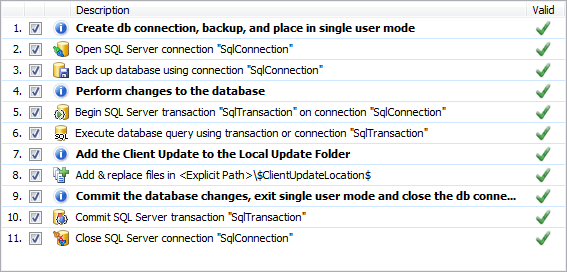
Step 1 – Create a db connection. The first step in the update reads the connection
string that was passed from the host application and creates a SQL Database connection. As this connection is opened, the database is transitioned into Single User Mode.
Step 2 – Backup the database. This is an optional step that should be done if any
non-transactable maintenance is performed on the database. If the update fails,
all of the work performed will be rolled back by the SQL transaction. This backup
is made as a safety precaution to prevent any possibility of data loss.
Step 3 – Create a SQL Transaction that is used by the actions that perform the database work. In the event
of an update failure, the SQL transaction is rolled back in the Update Engine Rollback
stage.
Step 4 – Execute the update.sql maintenance script. This action executes the
update.sql file. While preparing for an update,
all database changes are scripted and placed into the update.sql file. When
the server update package is built, the update.sql file is packaged into
the update.
Step 5 – Place the client application update on the local network. The client update is built before
the server update, and consists of a Director.Xml file and an update package
file (x.x.x.x.zip). These two files are added to the Local Client Updates folder. This location is passed into the update engine from the host application using Shared Properties.
Step 6 – Commit the transaction. The transaction created in step 3 is committed.
Step 7 – Close the SQL Connection. The database is placed back in multi-user mode.
Clients can now re-connect to the database.
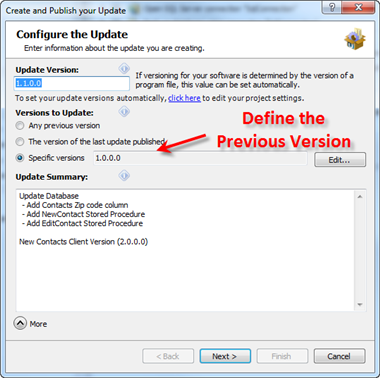 When the server update is built, the appropriate previous version(s) are set as
the versions to update. The previous versions that the update targets is determined
by the database version that the update.sql script expects.
When the server update is built, the appropriate previous version(s) are set as
the versions to update. The previous versions that the update targets is determined
by the database version that the update.sql script expects.
The Client Update replaces the Contacts.exe application assembly.
The client application checks for updates immediately upon start up, and if an update
is present, the client is updated without user intervention. This keeps all of the locally installed clients synchronized with the database version. Additional update checks can be implemented where appriopriate within the client application.
AppLife Update provides the infrastructure to quickly implement a reliable deployed application maintenance
solution for deployed database applications. The flexibility of the AppLife Update
Controller, as well as the transacted Update Engine provides all of the features necessary to maintain even the most complicated deployed solutions, saving your organization time and money with each new release of your software.
For answers to questions about this example, please contact Kinetic Jump tech support.
techsupport@kineticjump.com