Combining the installation features of the Windows Installer (msi) with the updating
features of AppLife Update provides software publishers with a sound application
deployment and maintenance strategy for Windows client and server software solutions.
This lab uses a Visual Studio Setup & Deployment project to deploy an example Windows
forms application and AppLife Update to build, discover, download and apply updates.
At the end of the lab, we will be able to create installation packages for new application
versions and publish updates that deployed clients use to automatically migrate existing installations to new versions.
The Visual Studio Setup & Deployment project is a very powerful and straightforward
mechanism to create a Windows Installer package for applications.
Note: The Setup & Deployment project was removed from Visual Studio 2012 and replaced with InstallShield Limited Edition. Setup & Deployment can continue to be used in Visual Studio 2010. We suggest considering the WiX Toolset for creating your MSI.
Using the File System view we can add the primary output of our example application project to
the Application Folder. When we add the output of the example application, all referenced
assemblies will be included automatically.
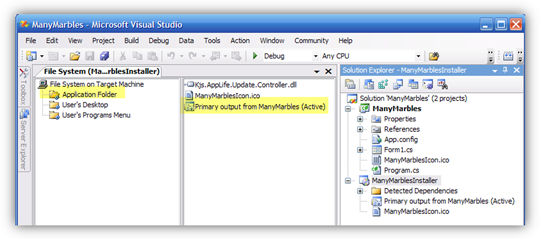 We also include a shortcut to the user’s start menu by selecting User’s Programs
Menu and adding a shortcut to the primary executable in the Application Folder.
We also include a shortcut to the user’s start menu by selecting User’s Programs
Menu and adding a shortcut to the primary executable in the Application Folder.
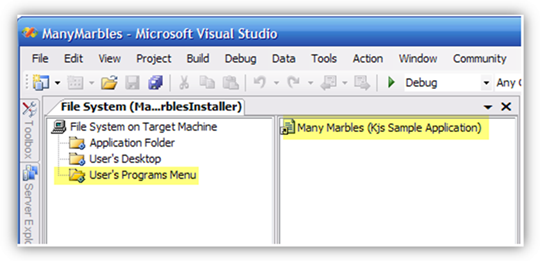
Create Non-Advertised Shortcuts: Because the AppLife Update maintenance process will replace
installed files, the shortcuts created by the installer should be non-advertised. This will prevent the Windows Installer from attempting to automatically fix the installation with the originally installed version.
With an installer ready to go, we want our example application to be able to discover,
download, and apply updates that will be published as changes are made to the application.
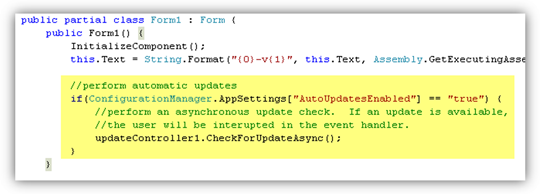
For this example, we want to check for updates without requiring user action, but
do want to require user confirmation before proceeding with an update. To accomplish
this, we initiate an asynchronous (background) update check when the application
launches. If an update is discovered, we ask the user for confirmation. If no updates
are available, the user is not interupted.
The AppLife Update Controller is very flexible. Deciding when to check for updates,
when to download, when to interrupt the user, and when to apply an update is entirely
up to the integrator.
Integrating AppLife Update is simple. We include a reference to the Update Controller
assembly and then place an Update Controller control onto the main form of our application.
Then we create an AppLife Update project file (aup) and synchronize the project
with the Update Controller in our application. Follow the instructions displayed
in the AppLife Update new project wizard. With the update controller in place, we check for updates during the initialization
of the main form in the application.
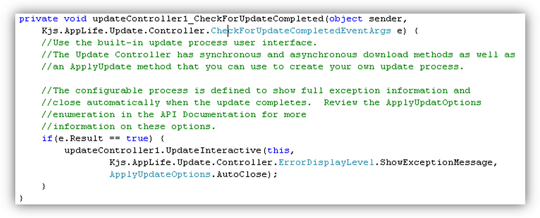
Because we are using the asynchronous event, we subscribe to the CheckForUpdateCompleted
event and continue the process within the event handler.
For update versioning, we are using the assembly version of the example application.
The Update Controller provides functionality for synchronizing the update version
to the assembly version. This feature is enabled by setting the UseHostAssemblyVersion
property of the Update Controller to true.
With our example application ready for updates, we can create and publish updates
as the application is extended. Updates for this example application will primarily
involve replacing assemblies, though in the future we may need to do more. For assembly
replacement, we are using the Add & Replace files by comparison action. This
action compares a baseline folder with a current folder to determine which files
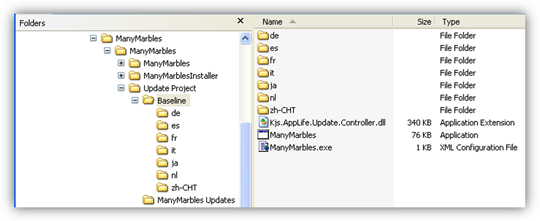
in the current folder is new or has been updated. The baseline folder should represent
what the application directory includes for a previous version of the application.
We have created a baseline folder for version 1.0.0.0.
For the current folder, we are using the Visual Studio build folder (bin). This
folder will have files that we don’t want to include such as pdb files, config files,
and code comment files. We can exclude these files with the action filter property.
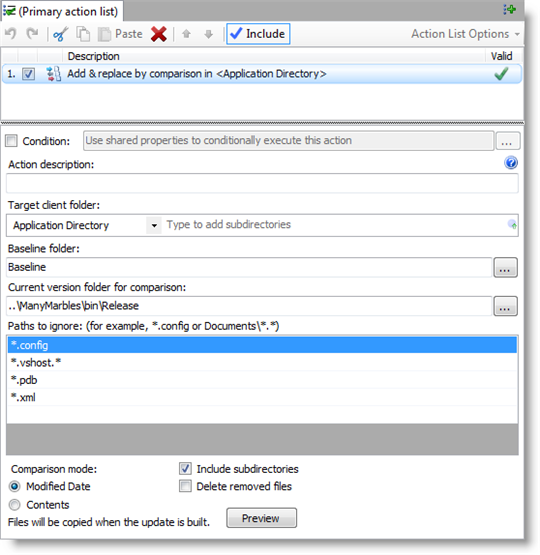
With this action set up, we are ready to build and publish updates whenever we build
the example solution. The updates we build for this application will target all
previously released versions.
With version 2.0 ready for deployment, we build the Installer project to create
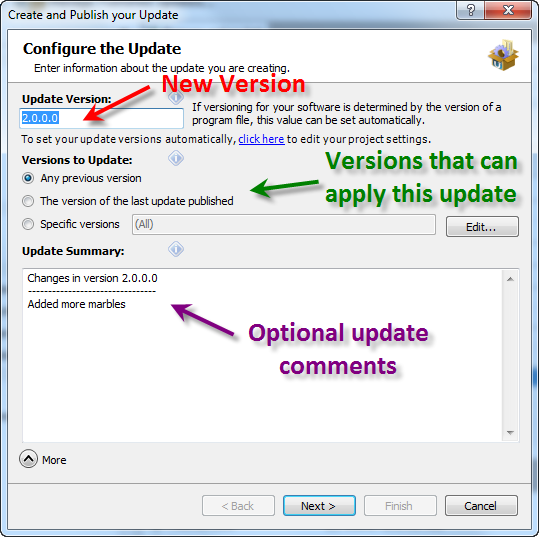
a new installer. With the new version built, we can publish an update using AppLife
Update. We set the new version number, what previous versions can apply this update,
and include any update comments.
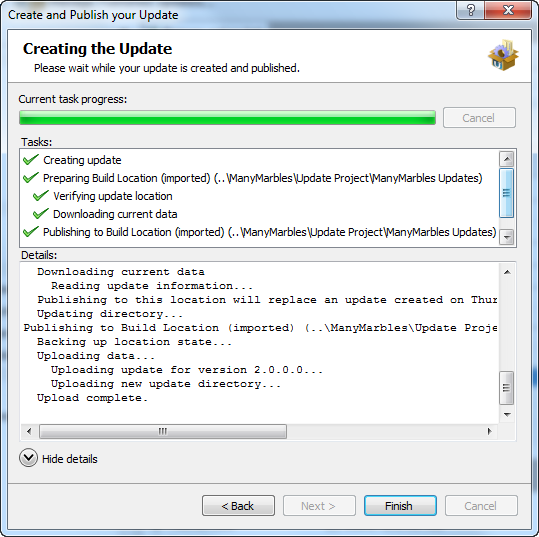
With the update published, previous versions can discover, download and apply the
update to version 2.0.
Visual Studio is a registered trademark of the Microsoft Corporation.